Photeeq is a Photoshop plugin that adds realistic lens flare effects to photos through digital light simulation. It offers customizable flare styles, intensity controls, and natural blending—though the original plugin is no longer actively maintained, several alternatives replicate its signature effects.
Photeeq is a photo editing plugin designed to add lens flare effects to digital images. Lens flare occurs when bright light enters a camera lens and scatters internally, creating visual artifacts like glowing orbs, streaks, or halos.
In traditional photography, lens flare was often considered a flaw. Modern photographers and editors use it deliberately to create mood, warmth, and cinematic quality. Photeeq made this process accessible by simulating how light behaves inside camera lenses.
The original Photeeq plugin is no longer actively developed or sold. However, its approach to realistic light simulation influenced many current editing tools. You can still find similar effects through modern alternatives or legacy installations.
The plugin stood out because it allowed precise control over flare characteristics. You could adjust color, intensity, position, and style to match your image perfectly. This made it popular with both amateur photographers and professional editors.
Photeeq works by adding a digital light layer over your photo. This layer mimics the optical properties of real lens flare, including how light refracts and scatters through glass elements.
The process starts when you place a flare point in your image. The plugin then generates corresponding light artifacts based on the selected lens type. Different lenses create different flare patterns—wide-angle lenses produce circular halos, while anamorphic lenses create horizontal streaks.
You control the effect through adjustable parameters. Brightness determines how intense the light appears. Size controls the spread of the flare elements. Color matching ensures the flare blends naturally with your scene’s existing lighting.
The plugin uses non-destructive editing, meaning your original image stays intact. Changes happen on separate layers, which you can modify or remove without affecting the base photo. This gives you complete flexibility during the editing process.
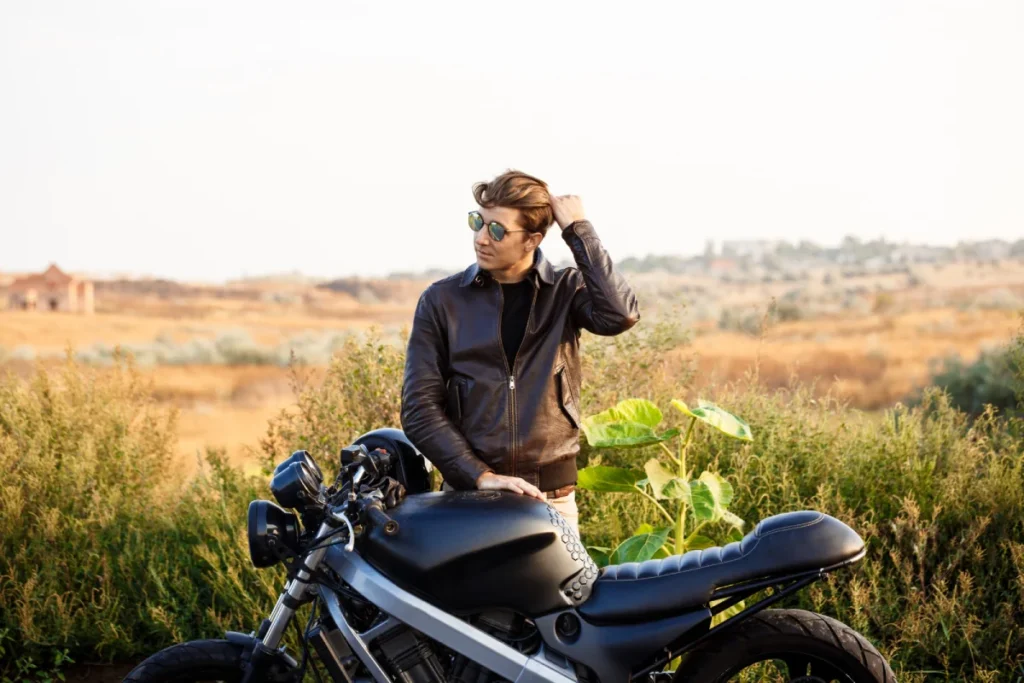
Backlit portraits gain depth and emotion from well-placed lens flare. When your subject stands between the camera and a light source, adding subtle flare can enhance the natural glow around their hair and shoulders. This creates a dreamy, romantic atmosphere that emphasizes the lighting you captured.
Sunrise and sunset landscapes become more dramatic with lens flare. The effect emphasizes the light source and draws attention to the sky. It reinforces the golden hour feeling and adds warmth to scenes that might otherwise feel flat.
Product photography benefits from lens flare on reflective surfaces. Watches, jewelry, cars, and glass items look more premium when light plays across their surfaces. Strategic flare placement highlights curves and textures, making products appear more desirable.
Cinematic and editorial work often uses lens flare intentionally. It adds a film-like quality to still images and creates visual interest in compositions with strong directional lighting. Music videos, album covers, and magazine spreads frequently employ this technique.
Images without a visible light source shouldn’t have lens flare. Adding it creates confusion and breaks realism. Viewers instinctively understand where light comes from—if your flare doesn’t align with an existing light, it looks artificial.
Corporate photography, technical documentation, and product catalogs rarely need lens flare. These contexts prioritize clarity and accurate representation. Adding artistic effects can undermine credibility or make images appear less professional.
Avoid lens flare when it obscures important details. If the effect covers faces, text, logos, or key product features, it becomes a distraction rather than an enhancement. The flare should complement your subject, not compete with it.
Start by opening your image in Photoshop or your chosen editor. Duplicate your base layer to preserve the original. This allows you to experiment without risking permanent changes.
Identify the light source in your image. This could be the sun, a lamp, a window, or any bright element. The lens flare should originate from or near this point to maintain realism.
Launch Photeeq from the Filter menu. If you’re using an alternative tool, access it through the appropriate menu or panel. Browse the available flare presets and select one that matches your scene’s mood and lighting type.
Place the flare origin point directly on or near your light source. Click or drag to position it precisely. The plugin will generate the full flare effect based on this placement.
Adjust the intensity using the brightness or opacity controls. Start conservative—subtle effects look more natural than dramatic ones. You can always increase the effect, but overly bright flares are harder to fix.
Fine-tune the color to match your scene’s temperature. Warm sunset scenes need orange or golden flares. Cool indoor or twilight scenes work better with blue or white tones. The flare should feel like it belongs to the same light environment as the rest of your image.
Check the blending mode if your software offers this option. Screen, Overlay, or Lighten modes typically work best for lens flare. These modes allow the effect to interact naturally with underlying layers.
Use layer masks to remove flare from sensitive areas. Paint black on the mask where you want to hide the effect, particularly over faces or important details. This gives you surgical precision without redoing the entire effect.
Preview your work at different zoom levels. What looks good at 100% might appear too strong when viewing the full image. Step back to ensure the flare enhances rather than dominates your composition.
Always align your flare with an existing light source. In nature, lens flare occurs because light hits the lens from a specific direction. Place your digital flare along that same axis. If the sun appears in the top right corner, the flare elements should spread toward the bottom left.
Match the color temperature to your scene’s lighting. Daylight has a different quality than artificial indoor light. Golden hour produces warm oranges and yellows, while midday sun leans cooler. Your flare should share these characteristics.
Keep the intensity subtle. Real lens flare rarely dominates an image—it adds atmosphere without overwhelming the scene. Start with low opacity and gradually increase until the effect feels present but not obvious.
Consider the physics of light direction. Flare elements generally appear opposite the light source in the frame. If sunlight enters from the left, the strongest flare artifacts show up on the right side of the image. This mimics how light scatters through lens elements.
Test your results at actual viewing size. Zoom out to see how the flare affects the overall composition. An effect that looks perfect at 200% zoom might be barely visible in the final output, or vice versa.
Study reference images from films and professional photography. Notice how real lens flare behaves. The best artificial flares imitate these patterns—they follow optical logic rather than looking like generic light overlays.
Over-applying lens flare is the most frequent error. Multiple strong flares or excessively bright effects make images look amateurish. One well-placed, subtle flare typically works better than several obvious ones. Professional work shows restraint.
Ignoring light source placement breaks realism immediately. Flare floating in dark corners or appearing where no light exists confuses viewers. They may not consciously identify the problem, but the image won’t feel right. Always anchor your flare to logical light origins.
Wrong color choices clash with scene lighting. Blue lens flare in a warm sunset scene looks fake. An orange flare in a cool nighttime cityscape feels out of place. Color harmony matters as much as placement.
Blocking important subjects with lens flare wastes the viewer’s attention. If the effect covers eyes, key product features, or important text, it becomes an obstacle rather than an enhancement. Use masking to protect critical areas.
Using identical flares across multiple images creates a recognizable pattern. Variety in flare style, intensity, and placement makes your portfolio look more professional. Real lighting conditions vary—your artificial effects should too.
| Name | Type | Platform | Best For | Cost |
|---|---|---|---|---|
| Photoshop Native Lens Flare | Built-in filter | Adobe Photoshop | Quick effects, basic needs | Included with subscription |
| Optical Flares | Plugin | Photoshop, After Effects | Professional video/photo work | $129 |
| Lens Distortions | Overlay pack | Any editor | Creative flexibility, layering | $29-199 |
| Nik Collection (Analog Efex) | Plugin suite | Photoshop, Lightroom | Vintage and modern effects | Free |
| Photopea Lens Flare | Web tool | Browser-based | No software installation needed | Free/Premium |
| GIMP Lens Flare | Built-in filter | GIMP | Free software users | Free |
Several modern tools replicate what Photeeq did. Adobe Photoshop includes a native lens flare filter under Render. It’s basic but functional for simple projects. The interface is straightforward, though customization options are limited compared to specialized plugins.
Optical Flares by Video Copilot offers more control and realism. Originally designed for motion graphics, it works equally well for still images. The plugin simulates actual lens physics and includes dozens of preset styles based on real cinema lenses.
Lens Distortions provides overlay packs rather than plugins. These are PNG or video files you import into any editing software. You position them manually and adjust blending modes. This approach gives you complete creative control and works across different platforms.
Nik Collection’s Analog Efex Pro includes lens flare among its vintage photography effects. The entire suite is free since Google acquired and released it. The quality is high, and it integrates smoothly with both Photoshop and Lightroom.
Photopea is a browser-based Photoshop alternative that includes lens flare tools. It’s useful when you need to edit on computers where you can’t install software. The interface closely mirrors Photoshop, making it familiar to existing users.
GIMP offers a free, open-source solution. Its lens flare filter is basic but adequate for non-commercial work. The tool works well if you’re already using GIMP as your primary editor.
Choose based on your specific needs. For occasional use, native tools or free options like Nik Collection work fine. Professional projects justify investing in Optical Flares or premium overlay packs. Browser-based tools help with quick edits on shared computers.
Photeeq offered more preset variety and customization than Photoshop’s built-in lens flare. The native Photoshop filter provides four basic lens types with limited adjustment options. You can change brightness and position, but color and spread remain mostly fixed.
Photeeq allowed independent control over each flare element. You could adjust individual orbs, streaks, and halos within a single effect. This level of precision made it easier to match specific lighting conditions or creative visions.
The realism factor favored Photeeq. Its lens simulations were based on actual optical characteristics of photography and cinema lenses. Photoshop’s native filter produces recognizable patterns that can look dated or artificial when overused.
Non-destructive workflow was cleaner with Photeeq. The plugin created effects on separate layers automatically. Photoshop’s native filter applies directly to the active layer, requiring manual duplication for non-destructive editing.
Photoshop’s advantage is immediate availability. Anyone with a Creative Cloud subscription can use it without additional purchases or installations. It’s fast for simple projects where you need basic flair quickly.
For professional work requiring specific looks or precise control, dedicated plugins or overlay packs provide better results. For casual editing or when working under tight deadlines with simple needs, Photoshop’s native filter remains serviceable.
The original Photeeq plugin is no longer actively developed or officially sold. Some users may have legacy installations, but new purchases aren’t available through official channels. Several modern alternatives offer similar or better functionality.
Most lens flare plugins work with Adobe Photoshop. Some also support Lightroom, Affinity Photo, or other editors that accept plugins. Browser-based tools like Photopea don’t require installation. Check compatibility before purchasing any plugin.
Yes. Modern tools make lens flare accessible to users at any skill level. Start with built-in filters or simple overlay packs. Focus on subtle effects and proper placement. As you gain experience, you can explore more advanced customization options.
Align the flare with a visible light source in your image. Match the color temperature to your scene’s lighting. Keep the intensity subtle—less is usually more. Use layer masks to remove flare from faces or important details. Study real photographs to understand how natural lens flare behaves.
For professional work, Optical Flares offers the most control and realism. For budget-conscious users, Nik Collection provides free, high-quality effects. Lens Distortions overlay packs work across any software. Photoshop’s native filter suits quick, simple projects. Choose based on your budget, software ecosystem, and desired level of control.